Install
Written for version 0.1.14. Steps checked against the help pages linked under each one on 30 October 2026. Menus change; if what you see differs, tell the maintainer through a GitHub issue.
Installing the plugin gives the assistant instructions only. The plugin itself adds no access to data, to your GitHub account or to anything on your computer; what the assistant app can reach is set in the app.
What you need: a paid Claude plan (Pro, Max, Team or Enterprise), Claude Code, or ChatGPT where Plugin Creator is available. If someone already set the plugin up for your lab, ask them whether you need your own copy.
Pick the assistant you use.
Claude (on the web, the desktop app or Cowork)
You need a paid Claude plan (Pro, Max, Team or Enterprise).
Add the plugin’s marketplace (a marketplace is a list of plugins kept in a GitHub repository):
In Claude, open Settings, then Customize.
Open the Plugins tab.
Click Add, then Add marketplace.
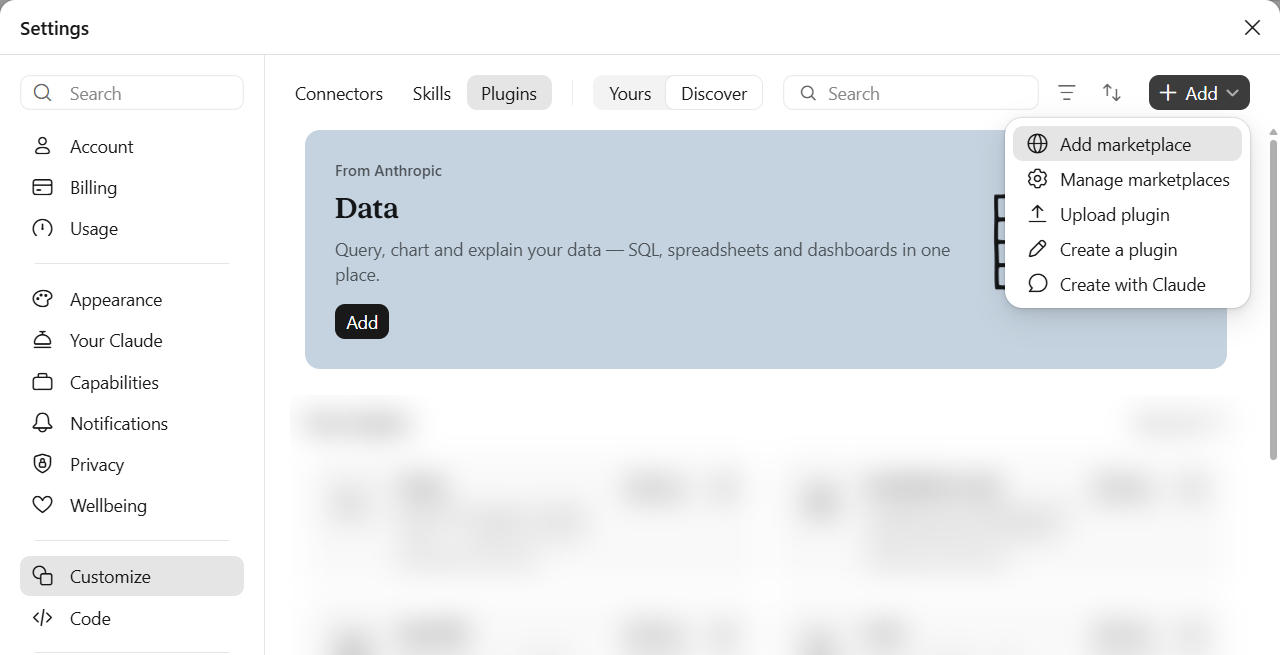
Settings → Customize → Plugins, with the Add menu open. Choose Add from a repository.
Type
VagishHemmige/r-analysis-workflowand confirm.
If your organization limits which marketplaces you can add, Claude will refuse it; ask your administrator.
Install the plugin:
- Still in Customize → Plugins, open the Discover tab.
- Select R Analysis Workflow and click Add.
Once installed, it works in chat on the web, the Chat tab of the desktop app, Cowork, and Claude Code when you sign in with the same account.
Source: Anthropic, Use plugins in Claude. Tried by the maintainer in Cowork with version 0.1.14 on 3 November 2026 (see VALIDATION.md).
Claude Code
You need Claude Code version 2.1.292 or later for the one-line install.
Install, in your terminal (not inside a Claude Code session):
claude plugin install r-analysis-workflow --marketplace VagishHemmige/r-analysis-workflowIt should print that it added the marketplace and then installed the plugin. To check, run claude plugin list: you should see r-analysis-workflow@r-analysis-workflow. The plugin loads the next time you start Claude Code.
On an older version, use two commands instead:
claude plugin marketplace add VagishHemmige/r-analysis-workflow
claude plugin install r-analysis-workflow@r-analysis-workflow
Updates. Claude Code does not update plugins from this marketplace automatically unless you turn it on. Either:
- turn it on once: inside a Claude Code session type
/plugin, go to the Marketplaces tab, selectr-analysis-workflow, then select Enable auto-update; or - update by hand when you want to, in your terminal:
claude plugin update r-analysis-workflow@r-analysis-workflowInstalling in Claude Code puts the plugin in Claude Code only. To use it in Claude chat or Cowork, add it there too, as in the Claude section above; a plugin added there also reaches Claude Code.
Sources: Claude Code docs, Install and manage plugins and Plugin commands reference. The install from GitHub was tested in a sandbox with Claude Code 2.1.314 (VALIDATION.md).
ChatGPT
In ChatGPT you make the plugin with OpenAI’s Plugin Creator, pointing it at this repository. Whether Plugin Creator is available depends on your plan and workspace; OpenAI’s help pages don’t list the plans.
Create the plugin:
- Start a new conversation.
- Type
@, search for Plugin Creator, and select it. - Ask it, in your own words: Create a plugin from the
plugin/folder of https://github.com/VagishHemmige/r-analysis-workflow. - Answer its questions and follow its prompts to finish. Check that the name is R Analysis Workflow.
Use it: in a new conversation, type @, start typing “R Analysis Workflow”, and select it under Plugins.
Update it when a new version comes out:
- Open Plugins and select R Analysis Workflow.
- Choose Edit Plugin.
- Ask it to update the plugin from the
plugin/folder of the same repository, keeping its name.
Sources: OpenAI, Build plugins (steps 1, 2 and 4, using it, and updating) and Plugins in ChatGPT.
What has and hasn’t been checked:
- OpenAI’s pages describe Plugin Creator building a plugin from your description and files. They don’t describe creating one from a GitHub repository (step 3). The maintainer tried step 3 with this layout on 30 October 2026 and it worked.
- Updating through Edit Plugin from the repository has not been tried with this plugin.
- Uploading a ZIP of the
plugin/folder: OpenAI’s help page mentions uploading a plugin but gives no steps, and it has not been tried with this layout. GitHub’s Download ZIP button gives the whole repository, not theplugin/folder, so it is not the right file. - Workspace administrators can import plugins from a GitHub marketplace that syncs daily, but this repository does not have the catalog file ChatGPT needs for that.